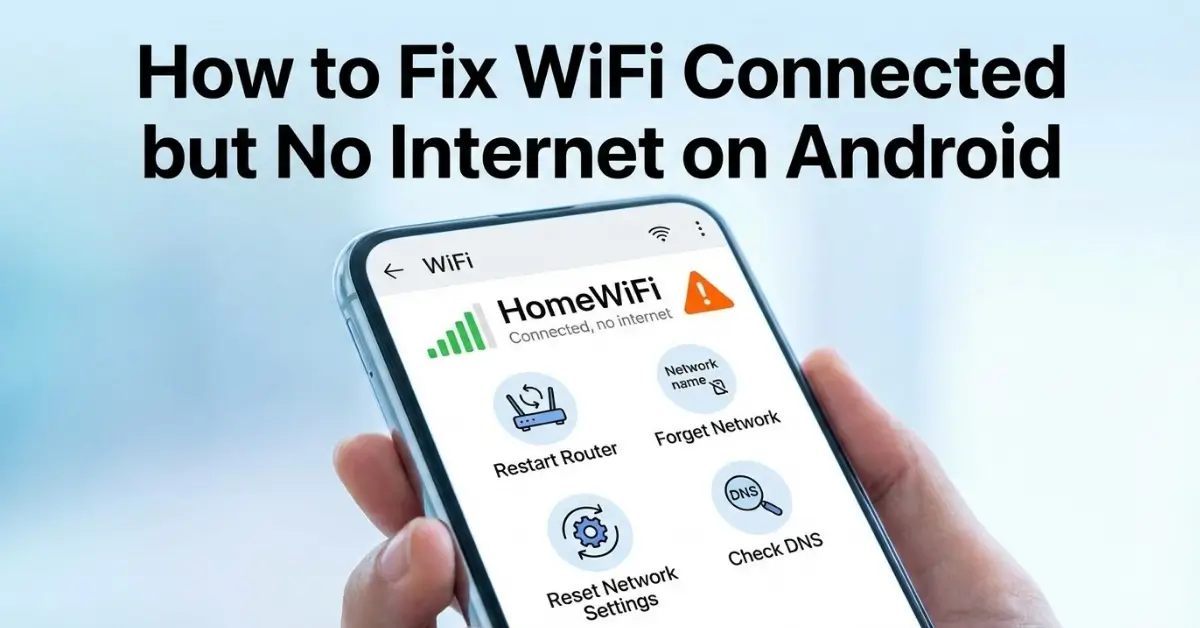
If you’re reading this, chances are your Android phone says it’s connected to WiFi, the signal looks strong, but nothing loads. Apps keep spinning, websites refuse to open, and switching between WiFi and mobile data feels like the only way to stay online. The “WiFi connected but no internet on Android” issue is one of the most common Android problems, and it’s also one of the most misunderstood.
I’ve run into this problem more times than I can count, across different Android brands, routers, and Android versions. Sometimes it’s a quick fix. Other times it looks like a network issue but turns out to be a setting buried deep in the phone. The good news is that you usually don’t need a new router or a factory reset to solve it.
In this guide, I’ll walk you through practical fixes that actually work in real-world use. No fluff, no guesswork, and no “just restart everything” advice without explaining why it helps.
What this Android WiFi issue actually means
When your phone shows a WiFi connection but no internet access, it means the device is successfully talking to the router, but the router isn’t providing usable access to the wider internet. Android detects this by trying to reach a small test page in the background. When that check fails, you stay connected locally but can’t load anything.
This distinction matters because it tells us where to look. The problem might be your phone, the router, the network settings, or sometimes even your internet provider. The trick is narrowing it down without wasting time.
Start by confirming the problem isn’t the network itself
Before changing anything on your phone, check whether other devices on the same WiFi can access the internet. If your laptop, tablet, or another phone works fine, the issue is almost certainly on your Android device. If nothing works, the router or internet connection is the real problem, and your phone is just telling the truth.
One quick test I use is switching the phone to mobile data for a moment. If everything instantly loads, your apps are fine and the issue is isolated to WiFi. That confirms you’re dealing with the classic WiFi connected but no internet on Android scenario.
Toggle Airplane mode the right way

This sounds basic, but it works more often than people expect, especially after moving between networks. Turn on Airplane mode, wait around 30 seconds, then turn it off and reconnect to WiFi. This forces Android to rebuild all network connections from scratch, including DNS and routing tables that can get stuck.
I’ve seen this fix issues that survived multiple restarts. It’s especially effective after public WiFi use or switching between home and office networks.
Forget and reconnect to the WiFi network
If Airplane mode doesn’t help, the next step is forgetting the WiFi network entirely. When you reconnect, Android negotiates a fresh connection with the router instead of reusing saved settings that may no longer be valid.
Go into WiFi settings, tap your connected network, choose forget, then reconnect and re-enter the password. Pay attention to whether the “no internet” message appears immediately or after a few seconds. That timing often hints at whether the issue is authentication-related or DNS-related.
In my experience, this step alone resolves a large percentage of cases where WiFi connected but no internet on Android appears suddenly after a router reboot or firmware update.
Check date and time settings
This is an overlooked but surprisingly common cause. If your phone’s date and time are incorrect, secure connections can fail silently. Many websites and apps rely on accurate system time to establish encrypted connections.
Set date and time to automatic, using network-provided values. I’ve fixed “no internet” issues that turned out to be nothing more than a clock that was a few minutes off after a battery drain or system crash.
If your battery has been draining unusually fast lately, it’s worth checking How to Fix Android Battery Draining Too Fast as well, since power-related issues sometimes cause background services like time sync to fail.
Disable VPNs and private DNS temporarily

VPN apps and custom DNS settings are great for privacy, but they can break WiFi connectivity in subtle ways. If you’re using a VPN, disconnect it and test the connection again. Many VPNs struggle with certain routers, especially on public or shared networks.
Also check if Private DNS is enabled in your network settings. Try switching it to automatic or off temporarily. I’ve seen phones report WiFi connected but no internet on Android simply because a custom DNS server was unreachable.
This doesn’t mean VPNs or private DNS are bad. It just means they add another layer that can fail independently of the WiFi signal itself.
Reset network settings on Android
If the issue keeps coming back, resetting network settings is often the cleanest solution. This clears WiFi, mobile data, and Bluetooth settings without touching your apps or files.
After doing this, you’ll need to reconnect to WiFi networks and re-pair Bluetooth devices, but the reset often removes hidden configuration conflicts that normal troubleshooting doesn’t reach.
I usually recommend this step when the problem appears across multiple WiFi networks, not just one. That’s a strong sign the issue lives inside Android rather than the router.
Router compatibility and frequency issues
Not all routers play nicely with all Android devices, especially older models or budget routers. Dual-band routers can cause issues when a phone constantly switches between 2.4 GHz and 5 GHz networks.
If possible, try separating the bands and connecting your phone to just one. In several cases I’ve tested, locking an Android phone to the 2.4 GHz band instantly fixed the WiFi connected but no internet on Android problem, even though the signal strength looked fine on 5 GHz.
Restarting the router helps, but if the issue returns frequently, firmware updates or router configuration tweaks may be needed.
Check for system updates and app conflicts
Outdated Android versions can have WiFi bugs that are quietly fixed in later updates. Check for system updates and install them if available. Even minor updates sometimes include network stability fixes.
Also think about recently installed apps. Firewall apps, network monitors, and battery optimizers are common culprits. If the issue started right after installing something new, temporarily disable or uninstall it and test again.
On slower or older phones, background apps can also overload system resources, indirectly affecting network services. In those cases, improving overall performance can help, which is why guides like How to Speed Up a Slow Android Phone often overlap with connectivity issues.
When the problem is actually your internet provider
Sometimes everything on your phone is fine, but your internet connection itself is unstable. Partial outages can result in a local connection without usable internet access. Your phone isn’t lying; it’s just stuck in the middle.
If multiple devices show similar symptoms intermittently, contact your provider or check their service status. I’ve seen week-long “Android issues” vanish instantly after an ISP fixed a line problem.
Why this issue keeps coming back for some users
If you frequently see WiFi connected but no internet on Android, it’s usually not one single cause. It’s a combination of network changes, background apps, router behavior, and Android’s own network handling.
The key is recognizing patterns. Does it happen after sleep mode? After switching networks? After enabling a VPN? Once you notice when it happens, the fix becomes much easier and often permanent.
Final thoughts
The WiFi connected but no internet on Android problem is frustrating because it looks simple but hides many possible causes. The good news is that most fixes are within your control, and you don’t need advanced technical skills to apply them.
Start with the simple steps, move toward deeper resets only if needed, and pay attention to patterns rather than random fixes. With a bit of patience, you can usually restore a stable connection and keep it that way.
If you’ve been dealing with this issue for a while, fixing it often improves overall phone performance too, not just your internet access. That’s one of those small wins that makes using your Android device feel normal again.